Quad Density
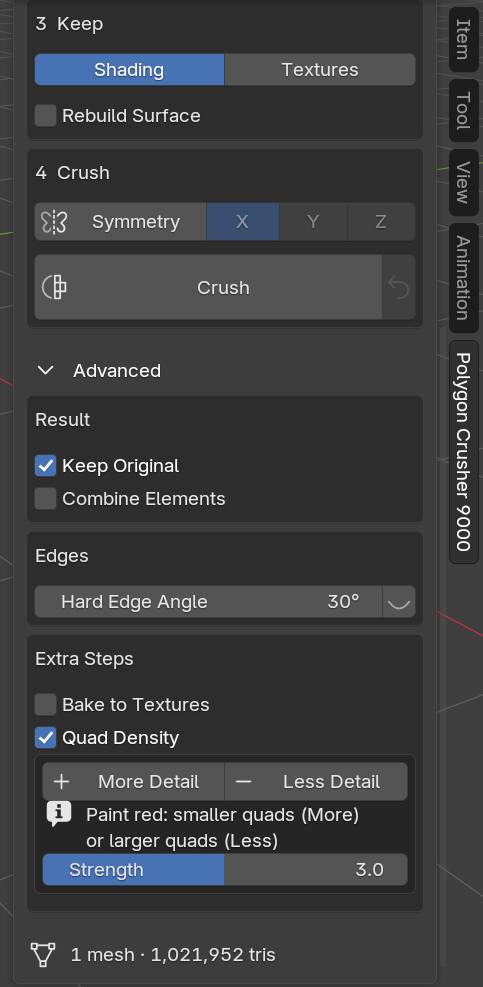
Quad Density lets you paint where a Remesh should use smaller or larger quads: smaller on a face, hands or a logo; larger on a flat back, the underside or parts nobody sees. It only appears while Remesh is selected.
The quad count stays what you asked for. Smaller quads in the painted area mean slightly larger ones in the rest of the model, and the other way round.
How to use it
- Under 2 Output, pick Remesh.
- Open Advanced → Extra Steps and tick Quad Density.
- Click More Detail to paint smaller quads, or Less Detail to paint larger quads. Blender opens Weight Paint on its own group (Quad Density or Quad Density Less). The button of the group you are painting stays pressed, and you can switch between the two.
- Paint red where you want the change. Soft paint gives an in-between size with a smooth change at the edge.
- Click Done Painting, then Crush.
Strength
Strength (1 to 8, default 3) says how many times smaller (More Detail) or larger (Less Detail) the quads get where you painted at full weight. 3 means up to three times.
Good to know
- It works with a Mirror modifier (paint one half, both get it), with Symmetry, and on sewn garments and many-part models.
- On a scanned human with the head painted More Detail, the head came out with quads half the size (four times as many) for the same 2,000 quads overall. Painted Less Detail, the quads were almost twice as large.
- A part smaller than one of the big quads (fingers, a fist) loses its shape under Less Detail. Leave small parts unpainted, or lower Strength.