Show Hard Edges
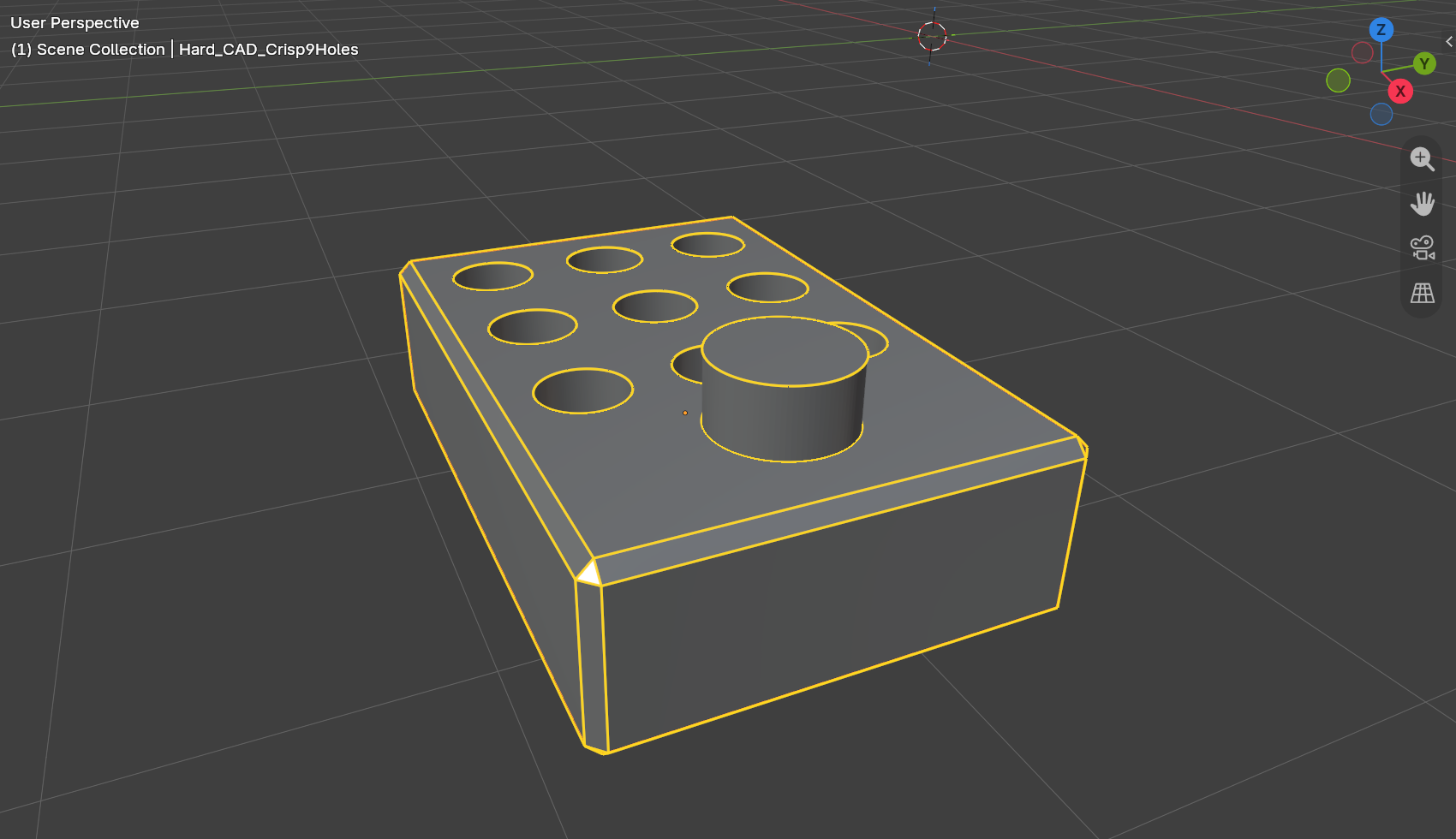
Show Hard Edges draws, in the viewport, the edges that will be kept in place, before you crush. You see what Sharps and the Hard Edge Angle will hold, and can change them until it looks right. It is only a viewport overlay: nothing is added to your scene.
It works for Decimate and Remesh and for every kind of model (before 2.9.3 it was CAD only).
How to use it
- Open Advanced and go to the Edges box.
- Click the eye button (next to Hard Edge Angle, or alone for Organic, Scan and Cloth sources).
- Change Hard Edge Angle, or mark and clear Sharp edges in Edit Mode. The lines update as you go.
The colors
| Color | Edges |
|---|---|
| Yellow | Sharper than the Hard Edge Angle |
| Cyan | Marked Sharp (any angle) |
| Purple | Borders between materials |
| Red | UV seams (when Textures is on) |
| Green | Open borders (holes and cut edges) |
A key under the button lists only the colors that apply right now.
On a model that looks like a scan, the panel says Looks like a scan: only marked Sharp kept: angle-based edges would just be noise there.
Hard Edge Angle
Angle — default 30°. Edges where two faces meet at a sharper angle than this count as hard edges. Edges you marked Sharp are kept at any angle. Raise the angle to let a detected edge go; use Clear Sharp in Blender to let a marked one go. The setting is hidden for Organic, Scan and Cloth.